
A visitor who wants to report a broken archive link should not have to provide a phone number, organization, project budget, and preferred meeting time. Those fields turn a simple note into an application. Ask for what you need to understand and route the message; leave questions about a possible later conversation for later.
On a historical-technical blog or research archive, someone might flag a citation error, request permission to reuse a figure, offer a correction, or ask about a technical source. Each request calls for different details. The form should let visitors explain their purpose without making everyone complete the same questionnaire.
Start with the job the form needs to do
Before changing labels or colors, look at the messages the site actually receives. A general contact form usually needs a reply address and a message. A correction may also need the page or article involved; a permissions request may need the material and intended use. Build fields around those needs, not an idealized visitor profile.
Three visible inputs are a sensible starting point: email address, subject or reason for contact, and message. A name can be optional if it makes replies more personal; it is rarely needed to investigate a factual error. If messages go to different teams, use a short reason selector with visitor-facing choices such as “Report an error” and “Ask about reuse,” not department names visitors may not recognize.
If you include “Other,” keep the free-text message field and make sure those submissions reach someone who can sort them out. No one should have to choose a misleading category to proceed.
Ask for detail at the point where it becomes useful
A citation correction needs to identify the affected passage. When someone opens the form from an article, you can include the page address automatically and show which page they are reporting. Someone coming from the site-wide contact page still needs a way to supply a relevant URL. That saves typing without hiding the context being sent.
A reason selector can reveal a field or two when needed. Choosing “Permission to reuse material,” for instance, might bring up questions about the item and intended use. Let visitors know those questions will appear, and avoid a chain of choices that keeps changing the form’s length. Essential instructions should be visible before someone spends time filling it out.
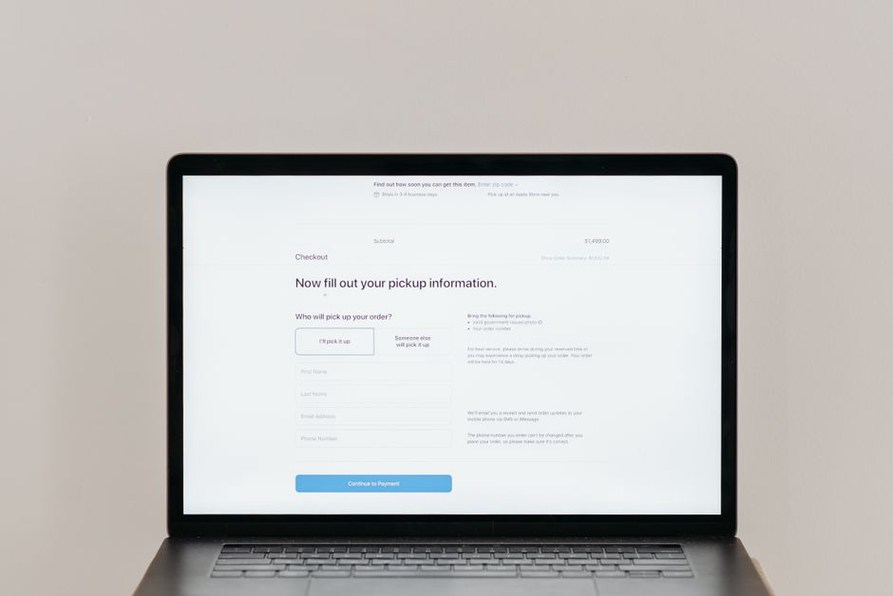
Make every field understandable before submission
Labels should name what a field accepts. “Email address” is clearer than “Contact”; “Page URL, if relevant” is clearer than “Reference.” Put labels outside the inputs. Placeholder text disappears as soon as someone types, so it cannot carry the only label or the only explanation of a required format.
Mark required and optional fields consistently, preferably with words. If only two fields are required, say so near the start and mark the exceptions. Do not collect a phone number just because it came with the form template. If a call might help, explain why you are asking and make the number optional unless the request cannot be handled without it.
Put instructions beside the choice they explain. A research-correction message field might say, “Include the article title and the claim you believe needs checking.” Tell visitors which file types and sizes an upload field accepts before they select a file. If attachments are not accepted, say that before someone writes a message that depends on sending one.
Choose controls that fit the answer without ruling out valid responses. An explanation needs a multiline box; an email address fits a single line. An email input can bring up a suitable keyboard on a phone, but avoid arbitrary restrictions on domains or punctuation. Nor should a URL field force someone reporting a print citation to invent a web address.
Let people finish on a small screen or with a keyboard
A form that looks short on a desktop can feel long on a phone when its fields sit in narrow columns or controls are hard to tap. A single column gives labels, inputs, and help text room. Leave enough space between controls, particularly around checkboxes and the send button.
Try the whole form with a keyboard. Focus should follow a sensible order, remain visible, and reach the send button without a mouse. Connect each label and instruction to its field so assistive technology can announce them. Put related choices under a descriptive heading instead of presenting unlabeled radio buttons. A visitor cannot fix an input they cannot identify or reach.
Color alone cannot explain an error or identify a required field. If a missing email turns a border red, add text beside it: “Enter an email address so we can reply.” Make it clear that the form was not sent. Where appropriate, move focus to an error summary or the first invalid field so keyboard users do not have to hunt for the problem.
Prevent errors without making reasonable inputs fail
Validation should catch problems that prevent a useful submission, not enforce a preferred writing style. Check for a required message and a plausibly formatted reply address. Accept names with spaces, hyphens, or non-English characters, and do not impose an arbitrary minimum message length. If the form already captures the page address, “The date in the caption is wrong” may be enough to start checking.
If validation fails, keep everything the visitor entered. Losing a carefully written account over an unexpected value in an optional field gives someone a good reason to give up. Draft saving may help with long or consequential requests, but explain whether a draft is stored and for how long. A basic contact form seldom needs it.
Check submissions on the server even if the browser validates them first. Browser behavior varies, and some submissions arrive without client-side checks. Either way, visitors should see which field needs attention, understand the problem in plain language, and find the rest of their message intact.
Make the send action unambiguous
“Send message” tells visitors more than “Submit.” If sending a request does not book an appointment or publish a correction, the button and surrounding text should not suggest it does. Show an on-page confirmation after a successful send. Say what happened and what comes next without promising a response time the organization cannot meet.
For example: “Your correction report was sent. We’ll review the cited passage; submitting a report does not change the published article automatically.” If the system assigns a reference number, display it and include it in any receipt email. No one should need to send a second copy because the page appeared to do nothing.

Explain how submitted information will be used
Even a form that asks only for an email address and message collects personal information. A short note near the button can say who receives the submission, how the address will be used, and whether the visitor gets a copy. Point to fuller privacy information if the site has it. Do not silently add people to a newsletter because they asked a question or reported an error.
Spam controls can also keep legitimate visitors out. Distorted text, unrelated puzzles, and repeated object-identification challenges all add work. Favor measures that ask little or nothing of visitors, alongside sensible submission limits and moderation. If a challenge is necessary, provide an accessible alternative and preserve the completed message if someone fails it.
Think carefully before accepting uploads. A scan may support an archive correction, but files bring privacy, storage, and security responsibilities. Tell visitors not to send private records or credentials, and offer a text-only route when no attachment is needed. If a process requires sensitive material, a general contact form may be the wrong channel.
Test the whole exchange, not just the form’s appearance
Send test messages for the main request types: a brief correction, a longer technical question, and a submission with an invalid address. Try a phone-sized screen, keyboard navigation, and a slow or interrupted connection. Check the confirmation, the receiving inbox, and whether the person reading the message has enough context to reply.
Look for repeated validation errors, fields people often leave unfinished, duplicate submissions, and messages sent to the wrong inbox. Do not assume a drop in submissions means the form improved: it might mean fewer unwanted messages, a broken form, or different site traffic. Read some of the messages that arrive to see whether visitors can explain what they need.
One final check for an article-correction form: open it from a real post and send only “The year in paragraph three should be checked.” The receiving email should contain the article URL, that wording, and a usable reply address. If it does, the visitor can make a useful contribution without copying the page location or filling in unrelated fields.