
“Good condition” tells you little about a refurbished laptop’s battery, screen, or repair history. Start with the exact model number and the seller’s return terms. Two machines sold under the same product name may have different processors, displays, ports, and memory. Even a generous-sounding warranty may exclude the battery—the part you most need to ask about.
Refurbished generally means a used device has been inspected and prepared for resale, but there is no single standard for that work. One seller might replace a faulty keyboard and test the charging port; another might wipe the drive and check that the machine starts. Ask what was tested, what was replaced, and what happens if a fault appears after delivery.
Match the laptop to the work
List the tasks the machine needs to handle before comparing prices. Browsing, documents, and video calls make different demands than video editing, software development, or image analysis. If you read scanned research papers, search a large local archive, and run older speech-recognition tools, storage and memory may matter more than a high-end graphics processor. Some computer-vision software, though, requires a particular graphics platform or driver. Check its published requirements first.
For general use, 16 GB of RAM leaves more room for browser tabs and applications than 8 GB; 8 GB can still be enough for lighter work. An SSD will feel much more responsive than an old mechanical hard drive. Think about where your files will live, too: 256 GB fills quickly if you keep videos, scans, or datasets locally. These are starting points, not performance guarantees. Processor generation, cooling, and software requirements also matter.
Check that the operating system is still supported and that the exact processor is eligible for the version you plan to use. A bargain loses its appeal if it cannot run your essential applications on a supported system. If specialized software needs an older system, consider how to use it without exposing unsupported software to everyday online activity.
Decode the listing before judging the price
Identify the actual configuration
Look for the full model identifier, processor model or generation, installed RAM, drive capacity, screen resolution, and battery information. “Core i7,” “professional laptop,” and “up to 16 GB RAM” leave important questions unanswered. An older processor with a familiar name can differ substantially from a newer one, while “up to” may describe the product line rather than the unit for sale. If appearance matters, ask whether the photos show that particular laptop or a representative example.
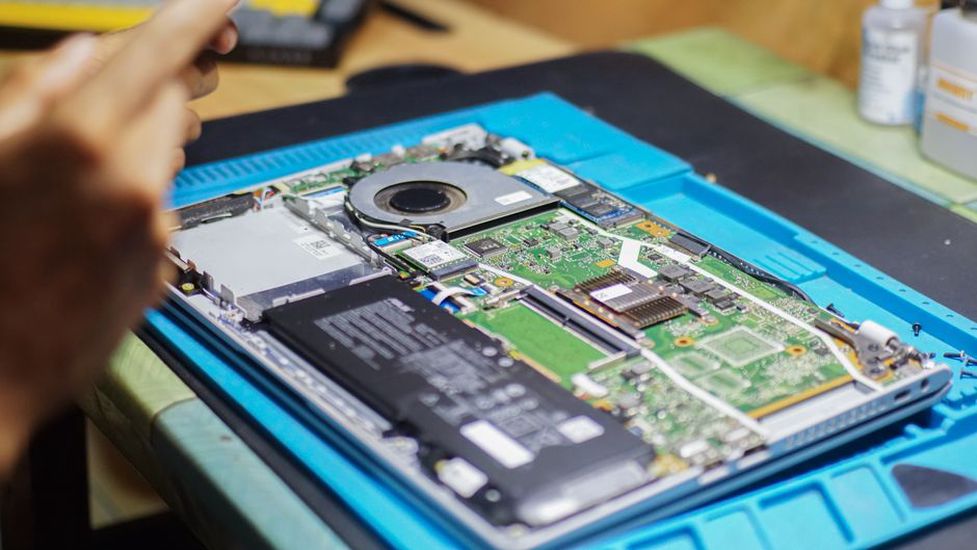
Find out whether the memory and storage can be replaced. Some thin laptops have soldered RAM; others have accessible slots. Opening a machine may also affect the seller’s warranty, even if a part is replaceable. Judge the configuration you will receive before putting much value on an upgrade you might never make.
Understand condition grades
Cosmetic grades usually describe appearance, not reliability. “Excellent” might mean a cleaner lid and palm rest, not a healthier battery. Read the seller’s written definitions and look for disclosures about cracked plastic, worn key legends, screen marks, loose hinges, and missing rubber feet. A case scratch may be easy to live with; a bright spot on the display may be distracting through a long editing session.

Check the box contents as well. The power adapter needs to supply the voltage and power the laptop requires. A missing or underpowered charger adds to the cost and may cause slow charging or reduced performance. For USB-C charging, confirm that both the supplied charger and cable meet the laptop’s power needs. The connector alone tells you very little.
Treat battery condition as a measurable claim
Battery capacity declines with age and use, so “holds a charge” is not much help. Look for measured full-charge capacity compared with the original design capacity, a stated test method, or a minimum battery-health threshold. Cycle count adds context but cannot predict runtime by itself. Workload, screen brightness, and battery chemistry all affect how long a charge lasts.
Ask whether the battery is original, tested, or replaced, and check its warranty coverage. A replacement is not necessarily an improvement if its quality or compatibility is unclear. On a machine with a sealed battery, find out what a future replacement would involve and whether parts are available. If you often work away from an outlet, allow for a possible battery replacement rather than trusting an “up to” runtime claim.
Inspect the screen, keyboard, and connections
If you spend hours reading, pay close attention to the display. Check its size, resolution, stated brightness, and glossy or matte finish. A low-resolution panel can leave too little room for a document beside your notes. For image analysis, color and viewing angles may matter, but do not assume a refurbished screen is color-accurate without measurement and calibration.
Make a list of the ports your equipment uses: perhaps USB-A for older peripherals, USB-C with specific data or display capabilities, video output, an audio jack, Ethernet, or an SD card reader. A USB-C-shaped port does not necessarily support charging, video, or every high-speed protocol. Check the model specifications and listing. If you use an external monitor, confirm the resolution and refresh rate supported through the port or dock you intend to use.
Keyboard layout can be easy to miss on imported or bulk-refurbished machines. Verify the language layout and check for disclosed replacement keys or stickers. If you rely on them, check the trackpad, webcam, microphone, speakers, Wi-Fi, and Bluetooth too. An intermittent wireless connection or muffled microphone will probably bother you more than a mark on the lid.
Find out what refurbishment actually covered
A useful refurbishment description distinguishes cleaning, testing, repairs, and data preparation. Did the seller check the display for defects, test every key and port, assess battery health, and try the camera and speakers? Did they check the drive for reported problems? Testing cannot promise a fault-free machine, but documented checks tell you more than a condition grade.
If the laptop will hold research notes, recordings, or scans, ask whether the drive is used or newly fitted. Either may be suitable; the point is to know which you are getting. Once the machine arrives, make your own backup plan. A seller’s drive check is no substitute for copies of important files.
The device should also be reset and ready for a new owner, without someone else’s files, accounts, or organizational management attached. Do not rely on an installation signed into a stranger’s account. If setup says the laptop belongs to an organization or asks for a previous owner’s credentials, contact the seller under the return policy rather than treating it as a small setup issue.
Read the warranty and return policy separately
A warranty sets out what the seller will repair or replace under specified conditions. A return policy governs whether you can send back a machine that is unsuitable or not as described. Read both. Check when each period begins, who pays return shipping, whether authorization is required, and whether the remedy is a refund, repair, or replacement. Look specifically for coverage of the battery, adapter, screen defects, and shipping damage.
Save the listing, condition grade, specifications, and warranty terms. Descriptions can change after a sale, and a copy helps you explain any mismatch. When buying from an individual rather than a refurbishment business, an opportunity to inspect the laptop can be especially important: formal testing, returns, and warranty coverage may be limited or absent.
Compare total cost, not the headline discount
Compare laptops with the same exact model and configuration, then consider a new machine suited to the same work. Add the cost of a needed charger, battery, memory or storage upgrade, shipping, and applicable taxes. A cheaper laptop with 8 GB of non-upgradable RAM could be a poorer buy than one with 16 GB already installed.
Age affects value beyond speed. An older model may have less operating-system support ahead, a less efficient processor, worn ports, or scarce replacement parts. Yet a well-documented business laptop with replaceable components may serve you better than a newer-looking machine with unclear specifications. Give more weight to condition and support you can verify than to a claimed discount from the original price.
Use the return window to test the unit you received
Test the laptop as soon as it arrives. Check its model, processor, RAM, storage capacity, screen resolution, and charger against the listing. Inspect the chassis and display in good light. Try every key, the trackpad, the hinge, and the ports you plan to use. Connect to Wi-Fi, make a short recording, and test the webcam and speakers.
- Battery: Review the operating system’s battery-health information, then observe runtime during your normal work instead of relying on an idle estimate.
- Display: View light and dark backgrounds to check for distracting bright areas, dead pixels, flicker, or pressure marks.
- Storage and stability: Check the drive information available in the system. Watch for unexpected shutdowns, repeated errors, or unusual noises during ordinary use.
- Heat and charging: Make sure the laptop charges reliably and does not become excessively hot or slow sharply during the tasks you bought it for.
Set a reminder for several days before the return deadline. If a laptop advertised with 16 GB of RAM arrives with 8 GB, or its battery falls below a stated health threshold, record the discrepancy and contact the seller while you have the listing and test results at hand.